


Finding a windows emulator for chromebook is less straightforward than installing a normal ChromeOS application. Chromebooks cannot natively open standard Windows .exe or .msi programs. Still, several practical methods can let you run Windows software without replacing ChromeOS.
The right choice depends on the program you need, your Chromebook hardware, and whether you have internet access. Wine and CrossOver can run selected applications locally, while remote services give you access to a full Windows computer. This guide compares the strongest options for U.S. Chromebook users in 2026.
Quick Comparison of Windows Options for Chromebook
| Option | Runs Locally? | Full Windows Desktop? | Internet Needed? | Best For |
|---|---|---|---|---|
| Wine | Yes | No | Usually no after setup | Free access to compatible lightweight apps |
| CrossOver | Yes | No | Usually no after setup | Easier local Windows app compatibility |
| Chrome Remote Desktop | No | Yes | Yes | People who already own a Windows PC |
| Windows 365 | No | Yes | Yes | Work and business use |
| QEMU/KVM | Yes | Yes | Not always | Advanced users with powerful hardware |
A Chromebook cannot natively run ordinary Windows programs. The most practical choices are Wine or CrossOver for selected local applications, Chrome Remote Desktop for an existing Windows PC, and Windows 365 for a cloud-hosted desktop. Advanced users may also experiment with virtual machines on compatible hardware.
What Does a Windows Emulator on Chromebook Actually Do?
The phrase “Windows emulator” covers several different technologies. Some options translate Windows software so individual programs can work on ChromeOS. Other options simply display a Windows computer running somewhere else.
This distinction matters because Wine is not technically an emulator. Wine describes itself as a compatibility layer that translates Windows API calls for other operating systems. A remote desktop service also performs no local Windows emulation because the program runs on another computer.
ChromeOS provides a Linux development environment on supported devices. Google says this environment uses Debian and can install Linux command-line tools and applications. That Linux environment underpins several local compatibility options.
1. Wine: Best Free Local Option
Wine is a strong starting point if you need one lightweight Windows program. It runs through the Linux environment on suitable Chromebooks. The software translates Windows application requests instead of installing a complete Windows operating system.
Wine works best with programs that do not depend heavily on Windows drivers or advanced graphics. Older utilities, productivity applications, and some lightweight programs can work well. Compatibility still varies significantly between applications and software versions.
First, enable Linux in your Chromebook settings. Google currently places the Linux setup controls under ChromeOS developer settings. Managed school or work devices may block this feature through administrator policies.
Pros
* Free and open source. * Can run applications locally. * No separate Windows computer required. * Can work offline after installation.
Cons
* Compatibility varies between programs. * Setup requires Linux knowledge. * Some Windows drivers will not work. * Modern games may perform poorly.
Wine is the best free option when you can tolerate troubleshooting. Check the specific application’s compatibility before spending time configuring it. For other computing coverage, browse Scriify’s Tech section.
2. CrossOver: Easier Windows App Compatibility
CrossOver provides another way to run certain Windows programs through Linux. It is based on Wine technology but focuses on a more guided user experience. That can appeal to people who prefer less command-line configuration.
The main disadvantage is cost because CrossOver is commercial software. Paying does not guarantee that every Windows application will work. Check the developer’s compatibility information for your exact program before buying.
CrossOver makes the most sense when Wine supports your software but feels too technical. It can save configuration time for compatible programs. Users who only need browser-based Microsoft Office may not need either option.
3. Chrome Remote Desktop: Best if You Own a Windows PC
Chrome Remote Desktop takes a completely different approach. Your Windows applications remain installed on another Windows computer. The Chromebook simply displays and controls that computer through an internet connection.
Google says Chrome Remote Desktop can provide access to applications and files on another computer. Remote sessions require the host computer to remain available. Google also states that its remote desktop sessions are encrypted.
This method gives you much broader application compatibility than local translation tools. Programs run on genuine Windows hardware instead of depending on a compatibility layer. Performance still depends heavily on your internet connection.
Pros
* Uses your existing Windows installation. * Supports far more Windows applications. * Requires little Chromebook processing power. * Setup is relatively simple.
Cons
* Needs a separate Windows computer. * Requires an internet connection. * The host computer must remain accessible. * Network latency can affect responsiveness.
This is often the safest choice for specialized business applications. It also works well when a Windows program depends on features Wine cannot reproduce. It is less useful when you need completely offline access.
4. Windows 365: Best Cloud Windows Experience
Windows 365 moves the Windows computer into Microsoft’s cloud infrastructure. Instead of maintaining a physical Windows PC at home, you connect to a Cloud PC. The Chromebook then becomes the screen, keyboard, and connection device.
Microsoft officially lists ChromeOS as a supported operating system for Windows 365 browser access. Users can open an assigned Cloud PC through a modern browser. This approach can provide a complete Windows environment without a local Windows installation.
Windows 365 is primarily positioned toward business and organizational use. Subscription costs and administration make it unnecessary for many casual users. Still, it can be useful when access reliability matters more than minimizing costs.
For students using organization-managed devices, access may depend on school policies. Scriify’s Education section also covers broader topics for students and learners. Always ask your administrator before changing Linux or remote-access settings on a managed Chromebook.
5. QEMU/KVM: Best for Advanced Local Virtualization
Advanced users may consider running a virtual machine through Linux tools such as QEMU. Unlike Wine, a virtual machine can attempt to run a complete operating system. This approach needs considerably more processor power, memory, storage, and technical knowledge.
Hardware architecture makes a major difference. Intel and AMD Chromebooks are generally more practical for traditional x86 virtualization than incompatible ARM configurations. Even suitable hardware may deliver weaker performance than a dedicated Windows laptop.
Local virtualization also introduces Windows licensing and installation requirements. You need a valid Windows installation source and enough storage for the virtual disk. This route is better treated as an advanced project than a universal Chromebook solution.
Which Windows Emulator for Chromebook Is Best?
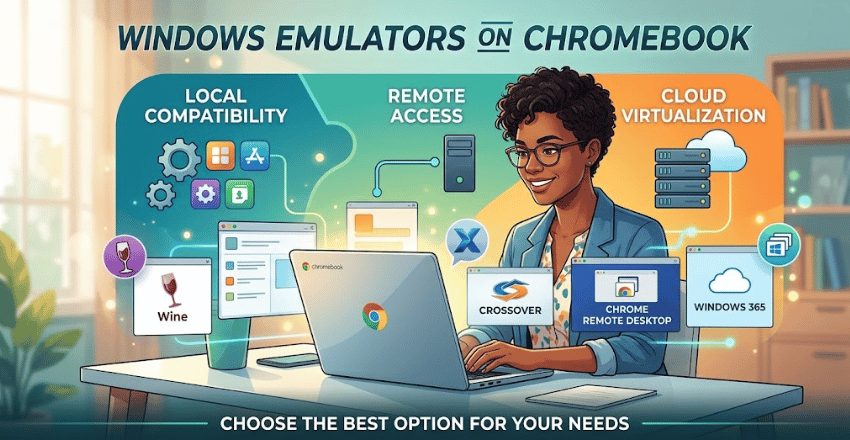
The best Windows emulator for Chromebook depends on what you are trying to accomplish. Wine is the strongest free choice for compatible lightweight programs. CrossOver offers a friendlier local experience when you are willing to pay.
Chrome Remote Desktop is usually better when you already own a capable Windows computer. Windows 365 makes more sense when you need a complete cloud-hosted Windows environment. QEMU suits technical users who specifically want to experiment with local virtualization.
| Your Need | Recommended Option |
|---|---|
| Free local Windows apps | Wine |
| Easier local setup | CrossOver |
| Existing Windows PC | Chrome Remote Desktop |
| Full cloud Windows desktop | Windows 365 |
| Advanced local VM | QEMU/KVM |
There is no single winner for every Chromebook user. Start with the least complicated option that supports your required application. Avoid installing a complete virtual machine when remote access solves the problem more reliably.
Why Parallels Desktop Is No Longer a Top Choice
Older guides often recommend Parallels Desktop for ChromeOS. That advice is now outdated for people setting up a new solution. Google states that Parallels Desktop for ChromeOS has been discontinued.
Support for existing customers ended on April 21, 2026. Google now points organizations toward Cameyo for Windows application virtualization. Therefore, Parallels should not lead a current list of Chromebook Windows solutions.
This change is especially important when comparing older search results. Articles written before the discontinuation may still describe Parallels as the primary enterprise option. Always check publication dates before following Chromebook virtualization instructions.
Can You Run Windows Games on a Chromebook?
Running Windows games locally is considerably harder than launching basic productivity software. Many modern games depend on DirectX features, graphics acceleration, anti-cheat software, and Windows-specific services. Those requirements can cause compatibility or performance problems.
Google’s Linux documentation currently lists hardware acceleration limitations within its supported Linux environment. This makes demanding Windows gaming a poor reason to choose local compatibility tools. Remote gaming or a dedicated Windows gaming computer is often more practical.
If gaming is your main interest, review Scriify’s Gaming section for related coverage. Check the requirements of each specific game before installing compatibility software. One game’s successful setup does not guarantee another title will work.
What Should You Check Before Installing Anything?
First, identify the exact Windows program you want to use. Search for an official web, ChromeOS, Android, or Linux version before adding another software layer. A supported native or browser version usually creates fewer compatibility problems.
Next, check whether your Chromebook allows Linux. School and business administrators can disable Linux features on managed devices. You should not attempt to bypass policies on equipment managed by another organization.
Finally, consider whether you need offline access. Wine and CrossOver may continue working locally after setup for compatible software. Remote desktop and cloud PC options depend on a working network connection.
Frequently Asked Questions
Is there a free windows emulator for chromebook?
Wine is the most established free option for running compatible Windows applications through Linux. It does not provide a complete Windows desktop. Compatibility depends on the specific application and Chromebook configuration.
Can a Chromebook run Windows EXE files?
ChromeOS cannot natively launch ordinary .exe files like Windows does. A compatibility layer such as Wine may run selected programs through Linux. Remote-access services can instead run the application on a separate Windows computer.
Can I install Windows 11 on a Chromebook?
Installing Windows directly is possible only on certain devices and usually requires substantial technical changes. Driver support, firmware configuration, licensing, and hardware compatibility can create problems. Most users are better served by remote access or compatible ChromeOS software.
Is Wine an emulator?
No. Wine’s own documentation specifically describes it as a compatibility layer rather than an emulator. It translates Windows API calls so supported applications can work on compatible operating systems.
Does Windows 365 work on Chromebook?
Yes, Microsoft supports ChromeOS for Windows 365 browser access. You still need an appropriate Windows 365 account and reliable internet access. The Windows computer itself runs in Microsoft’s cloud rather than on your Chromebook.
Final Verdict
Most Chromebook owners do not need a traditional emulator. Start with Wine for a free lightweight local application, or try CrossOver for easier compatibility management. Use Chrome Remote Desktop when a Windows PC is already available.
Choose Windows 365 when you need a complete cloud Windows environment for work. Reserve QEMU and other local virtual-machine methods for technically experienced users with suitable hardware. This approach keeps ChromeOS intact while giving you the Windows access your specific software requires.
